Softbook AI Guide

How to Use AI Image Studio

Create professional visuals for social media, ecommerce, product photoshoots, image transformations, architecture concepts, merged images, and digital art.

Softbook AI Image Studio overview screenshot

What you can create with Image Studio

Softbook AI Image Studio lets you generate new visuals from text, transform uploaded images, recreate a design using a reference, merge images, create ecommerce visuals, design social media posts, and turn sketches or flat concepts into more polished images.

The form guides you step by step, so you can choose the image type, size, style, inputs, instructions, variations, optional text, and advanced PRO V2 mode.

Finished AI image generated with Softbook AI

Step-by-step guide

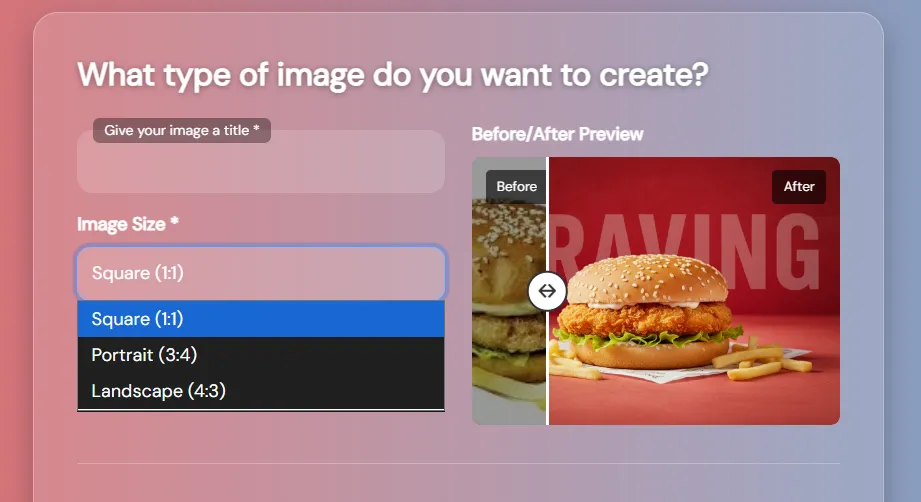
Image type and image size selection screenshot

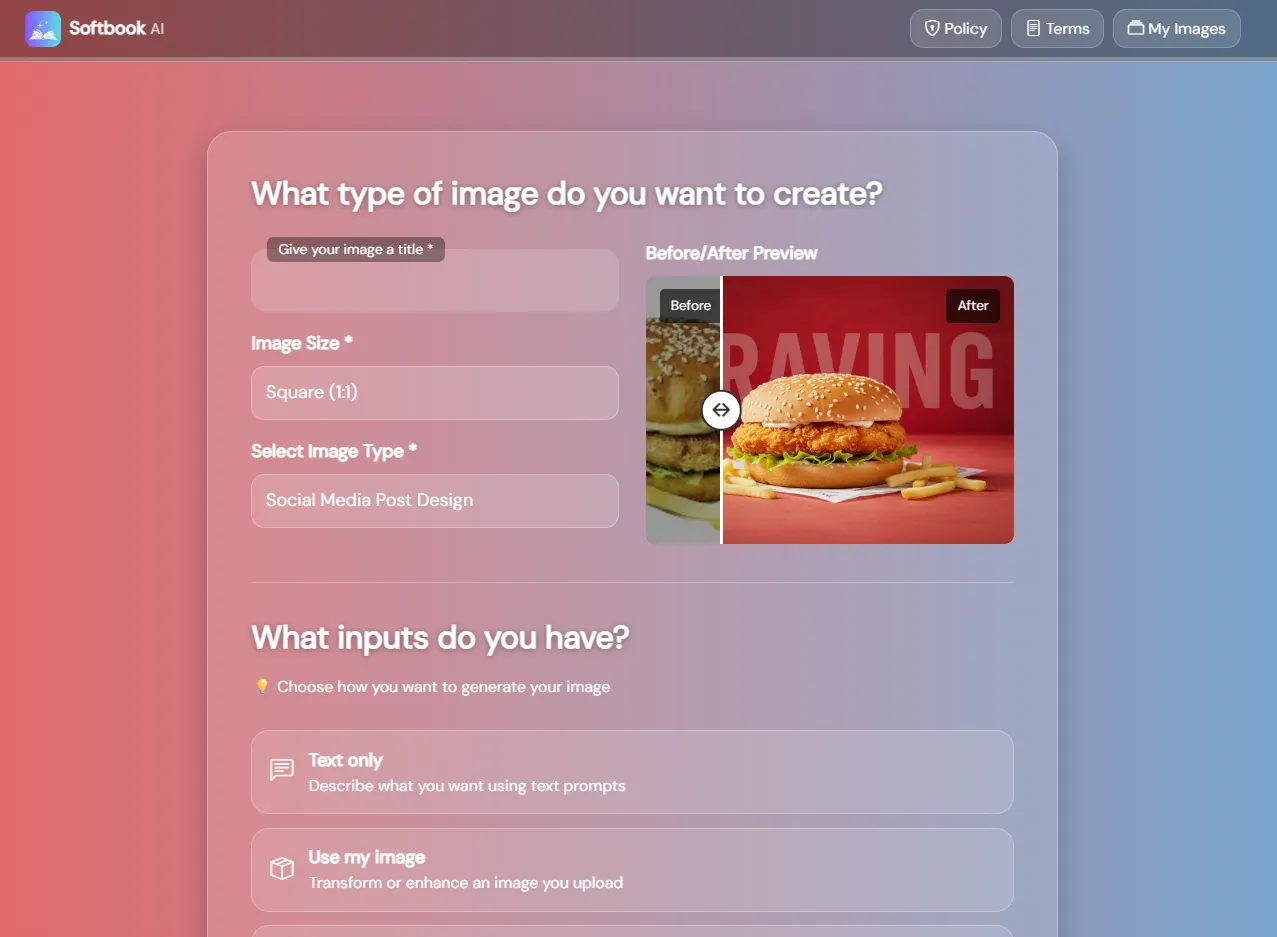
01. Choose your image title, size, and type

Start by giving your image a title, selecting the image size, and choosing the type of result you want to create.

  • Social Media Post Design
  • Ecommerce Product / Item Design
  • Photography Studio / Professional Photoshoot
  • Transform Single Image
  • 2D to 3D Architecture Design Transformation
  • Merge Two Images
  • Digital Art Transformation
Image Studio input options screenshot

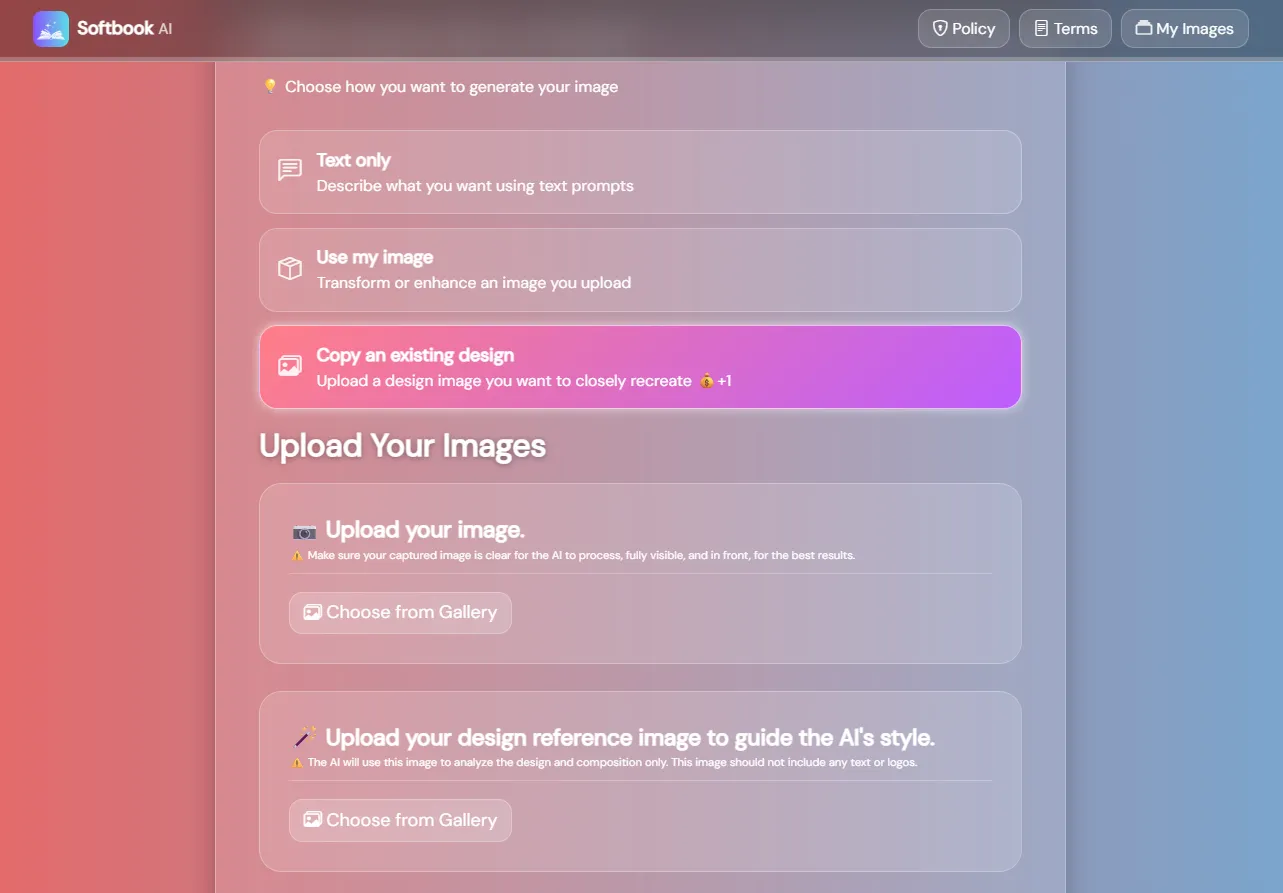
02. Select the inputs you want to use

Depending on the image type, you can create with text only, transform an uploaded image, or copy an existing reference design.

  • Text only: describe the result you want.
  • Use my image: upload a product, portrait, sketch, item, room, or design.
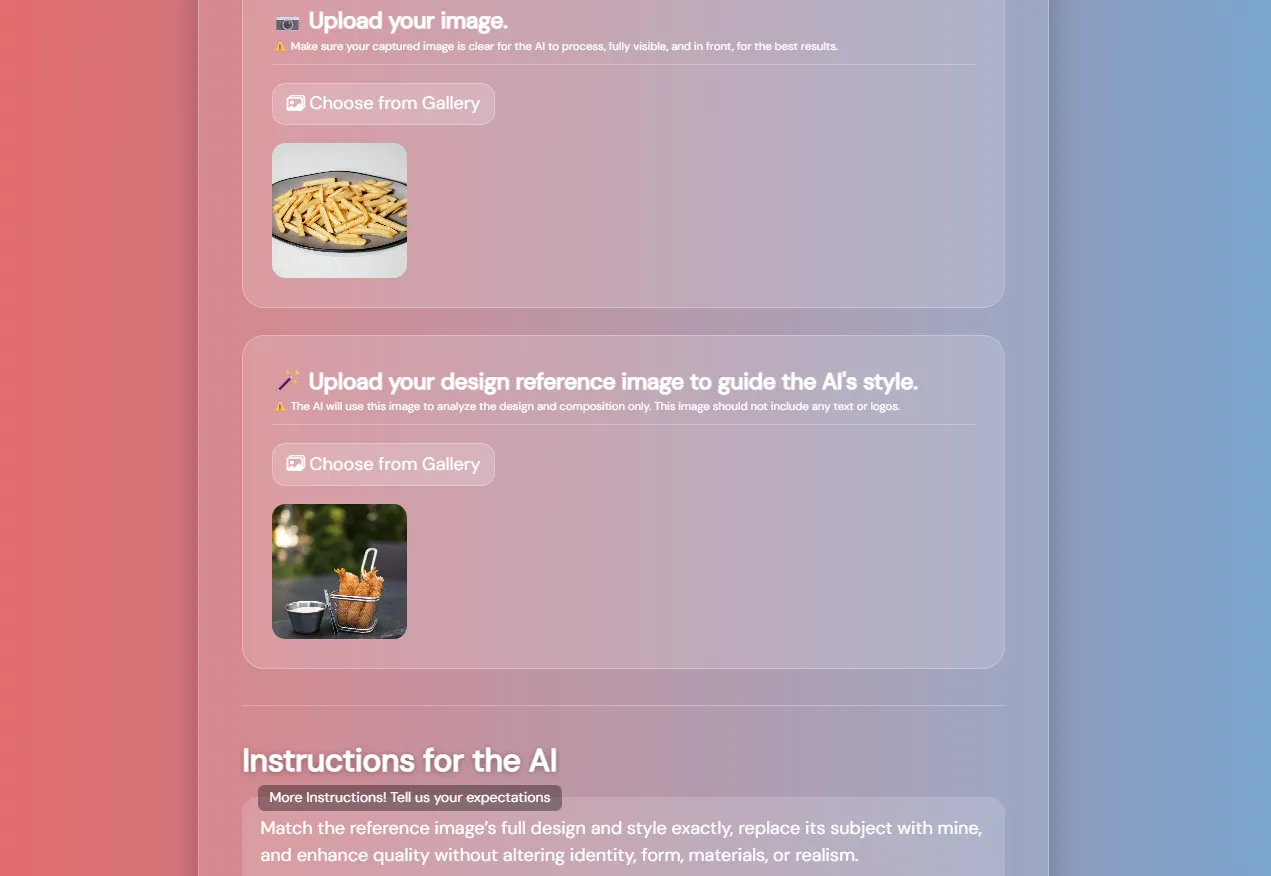
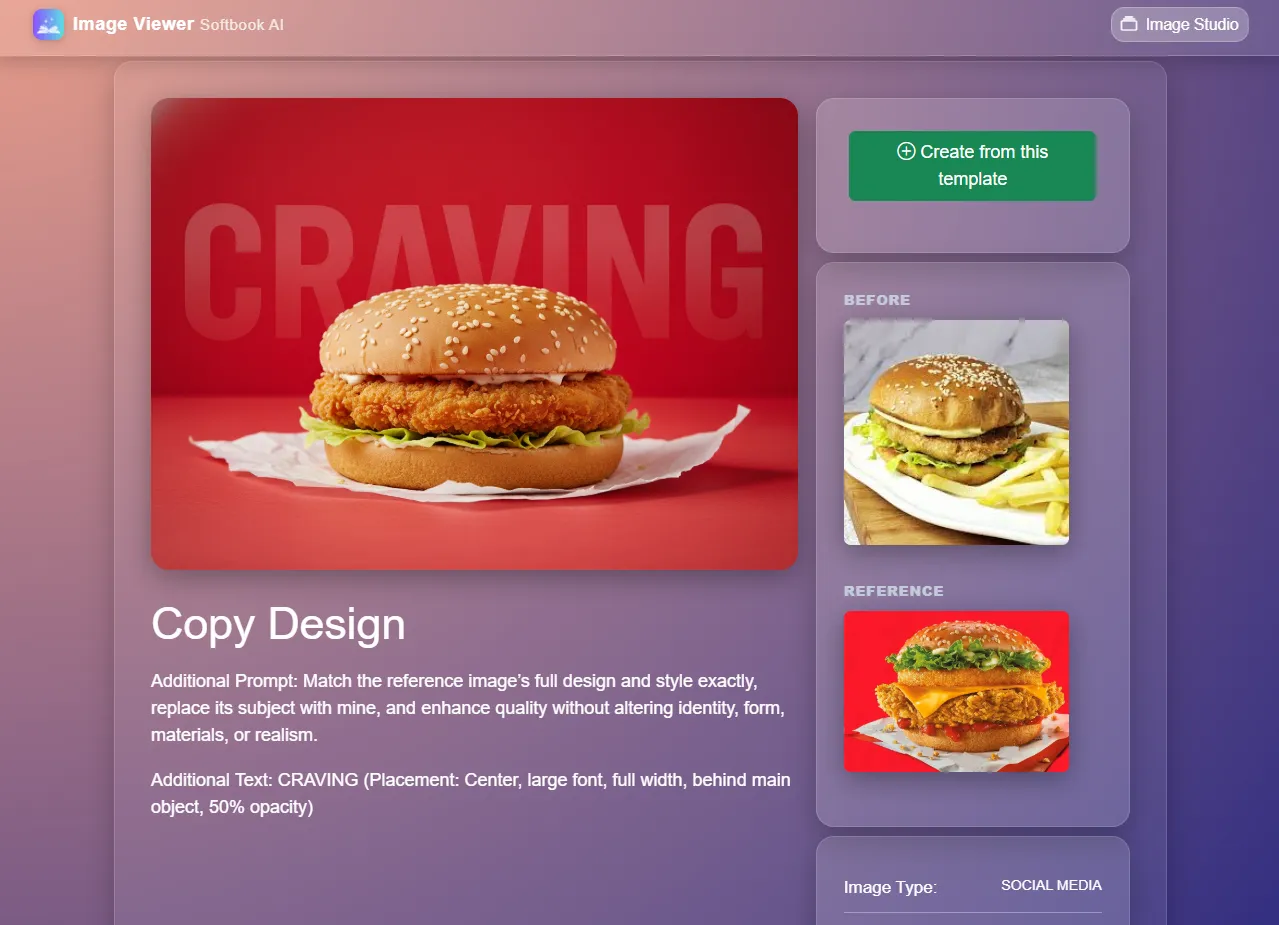
  • Copy an existing design: found a social media post, advertisement, product photo, ecommerce image, flyer, or design you love? Simply upload a screenshot of the design along with your own photo, product, or image. Softbook AI will intelligently recreate the style, composition, layout, lighting, colors, and visual direction while replacing the original content with yours. It's one of the fastest ways to achieve professional-quality marketing, branding, ecommerce, and social media visuals without hiring a designer.
Image style and color options screenshot

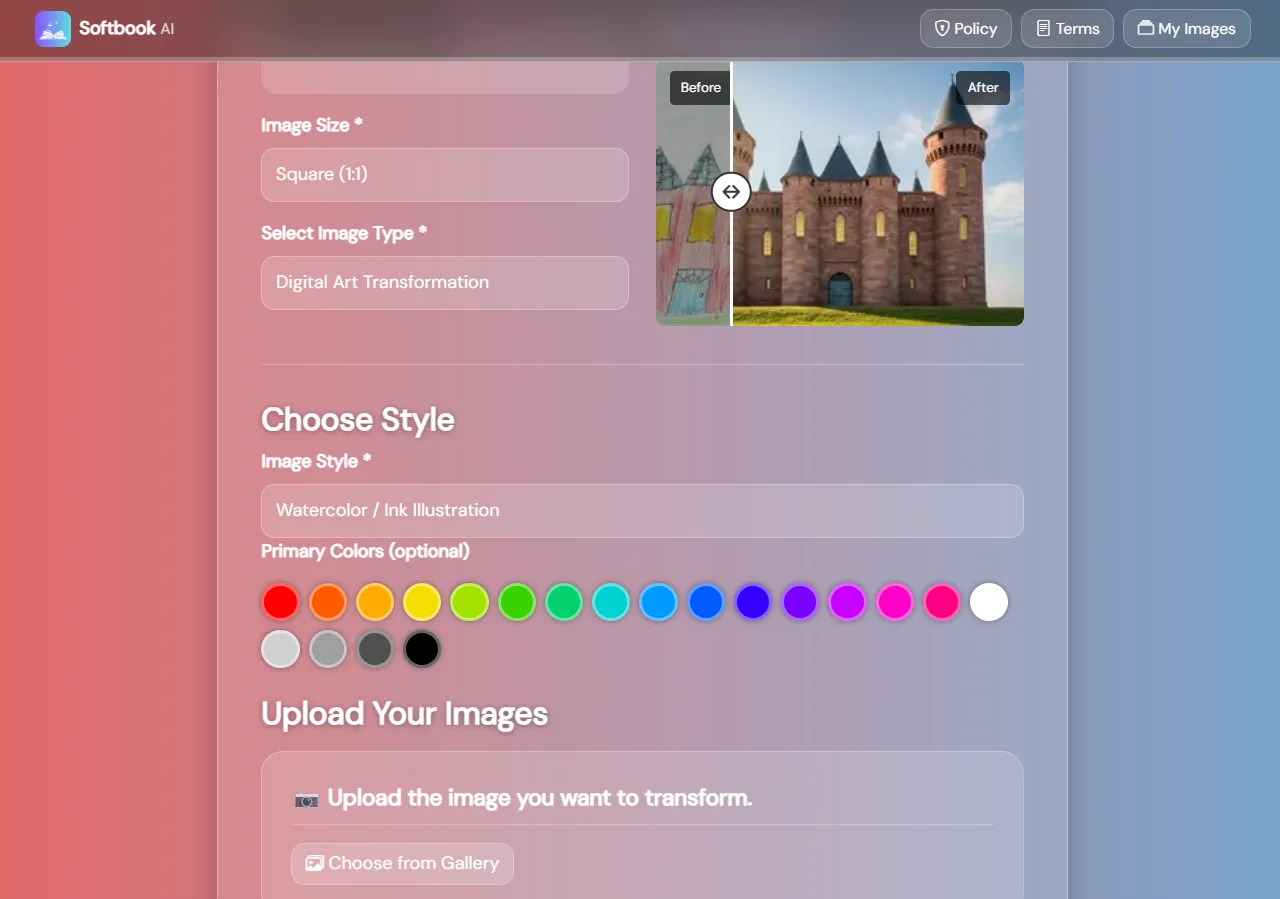
03. Choose style and colors

In case of Digital Art Transformation, pick an image style and optional primary colors. This helps the AI match the final look to your brand, product, story, or creative direction.

  • Anime / Manga Style
  • 3D Render Cartoon
  • Watercolor / Ink Illustration
  • Oil Painting / Classic Fine Art
  • Photorealistic
Image Studio AI instructions and suggestions screenshot

04. Add instructions for the AI

Use the instruction box to explain the mood, lighting, style, background, composition, text placement, or any special detail you want. You can also use quick suggestion buttons for modern style, realism, soft lighting, or matching a reference.

For social media content, Auto-Enhanced Additional Prompts can analyze your image first and redesign it with a more professional graphic design approach.

Image variation text and PRO V2 options screenshot

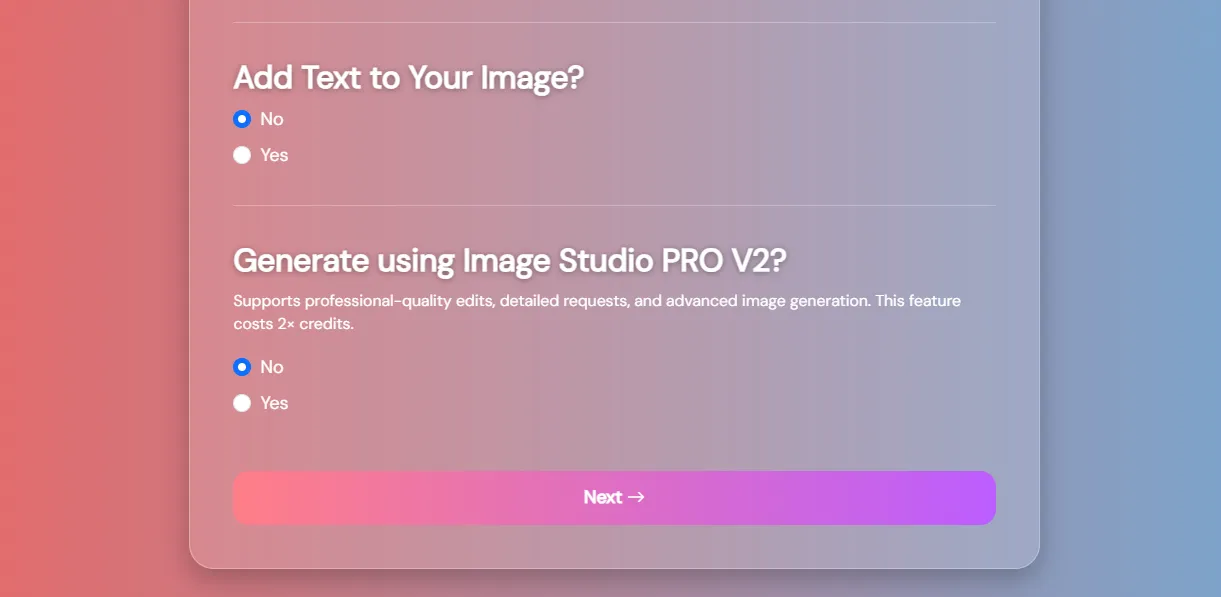
05. Pick optional text, and PRO V2

You can ask the AI to add text to the image and describe where it should appear.

For more advanced edits or higher-detail generation, choose Image Studio PRO V2 when available.

Generate image final step screenshot

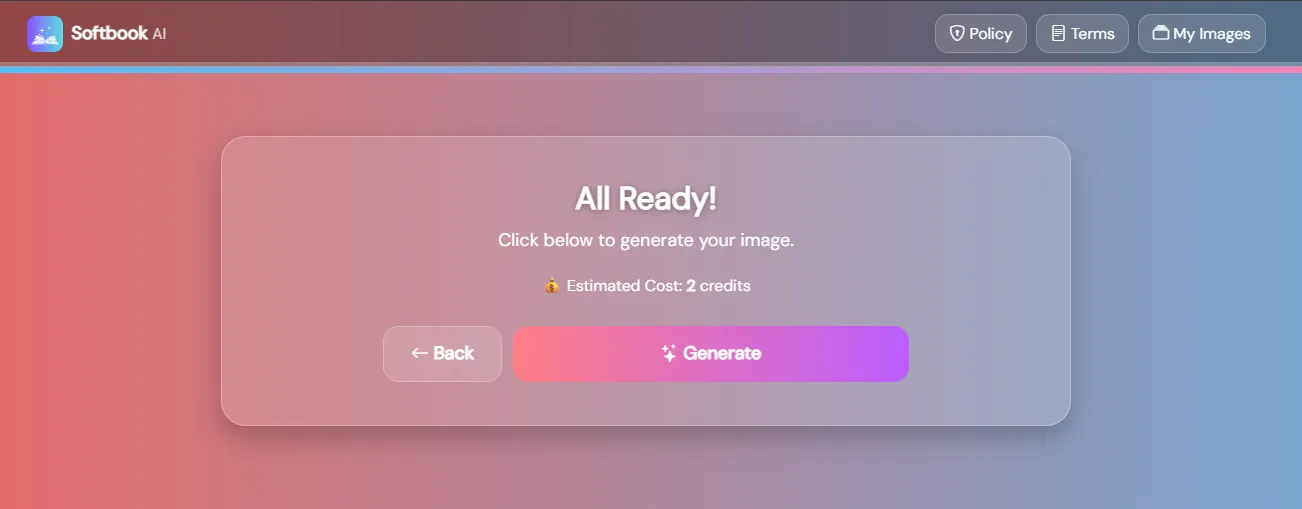
06. Generate and review your result

Once everything is ready, check the estimated cost and click generate. After the image is created, you can review the result, save it, publish it, or reuse your settings for future projects.

Reuse, share, and duplicate successful image settings

07. Reuse, share, and duplicate successful image settings

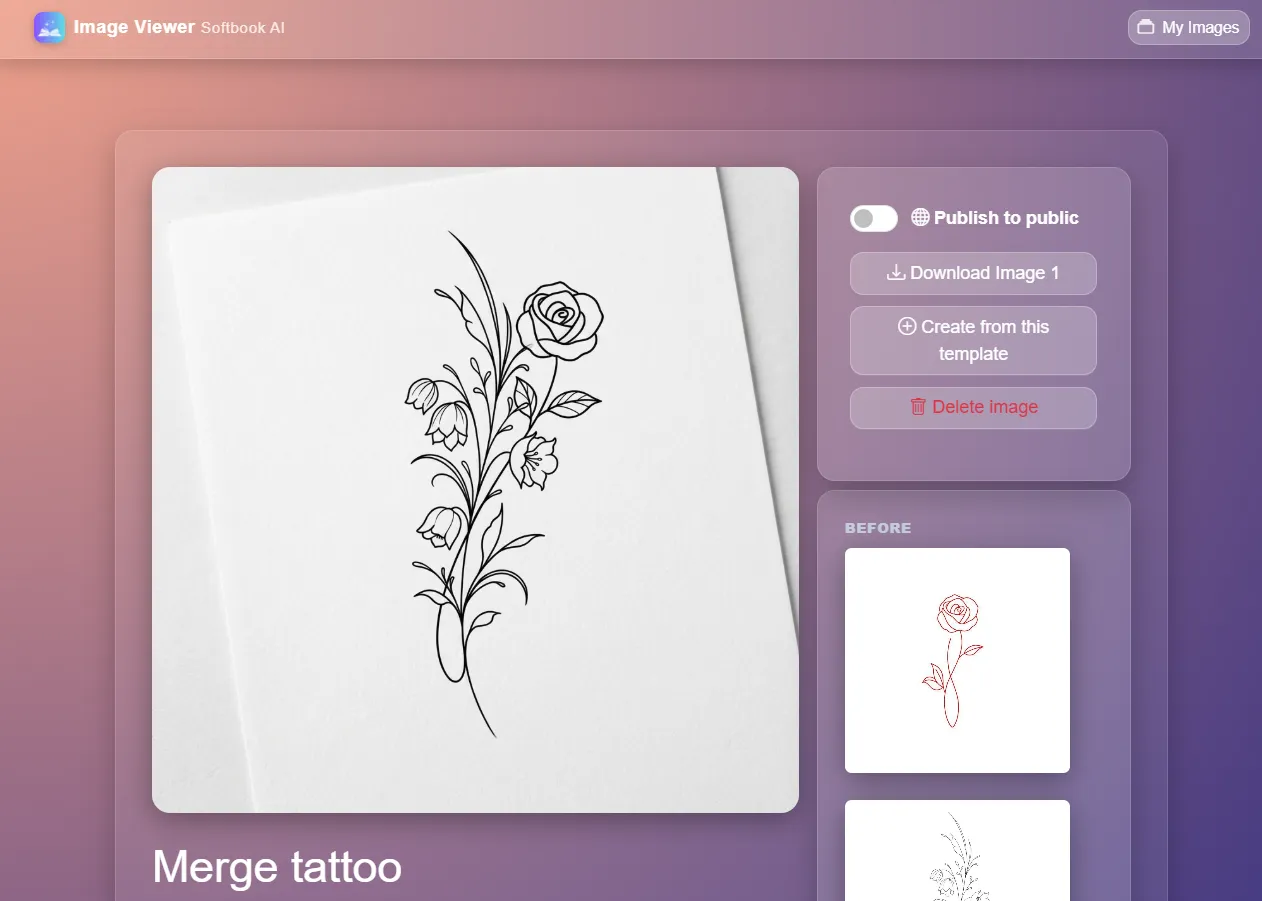
Once your image has been generated, Softbook AI saves all generation settings so you can easily reproduce the same visual style, composition, and quality in future projects. Instead of rebuilding prompts and settings from scratch, you can instantly reuse successful creations as templates.

Open any generated image and access its settings page to create new variations using the exact same configuration. This is perfect for building consistent social media campaigns, product catalogs, brand assets, marketing materials, and visual collections while saving significant time.

You can also publish and share your image settings with others using a unique link. Friends, team members, customers, or followers can open the shared template and generate their own versions with a single click, making collaboration and content creation faster than ever.

Tips for better AI images

Describe the visual goal

Mention the subject, composition, lighting, background, mood, and final use case.

Use clear uploads

For product, portrait, or transformation work, upload sharp images with good lighting and visible details.

Choose the right size

Use square for general posts, portrait for mobile-first content, and landscape for wide banners or scenes.

Ready to create your next AI image?

Start with a title, choose your image type, add your instructions, and let Softbook AI create a polished visual for your project.

Create Image Create Story